The landscape of file sharing between Android and iPhone devices has become significantly more user-friendly. Following Google's successful integration of AirDrop functionality with the Pixel 10 last year, this feature is now extending to a wider array of Android smartphones. As more devices prepare to adopt this capability in the upcoming months, the sharing experience is poised for a transformation.
While Apple has not prioritized enhancements for iPhone-to-Android sharing, recent updates have introduced support for end-to-end encryption over RCS with the iOS 26.5 update. This marks a step forward in secure communication between platforms.
For those who wish to share files from Android to iOS but lack AirDrop access, Google has unveiled an innovative sharing method utilizing QR codes. Announced during The Android Show: I/O Edition, this feature allows users to swiftly send files, links, and contacts with just a few taps. The rollout is currently in progress for all Android devices, making this functionality widely accessible.
How to Share from Android to iPhone Using a QR Code
This new capability is part of the Quick Share feature on Android. When you tap the share button in any app, a share sheet will appear, showcasing contacts and apps, including the Quick Share option. This feature is designed for fast transfers without relying on third-party applications. If your Android device supports AirDrop and an iPhone is nearby, it will appear as a sharing option.
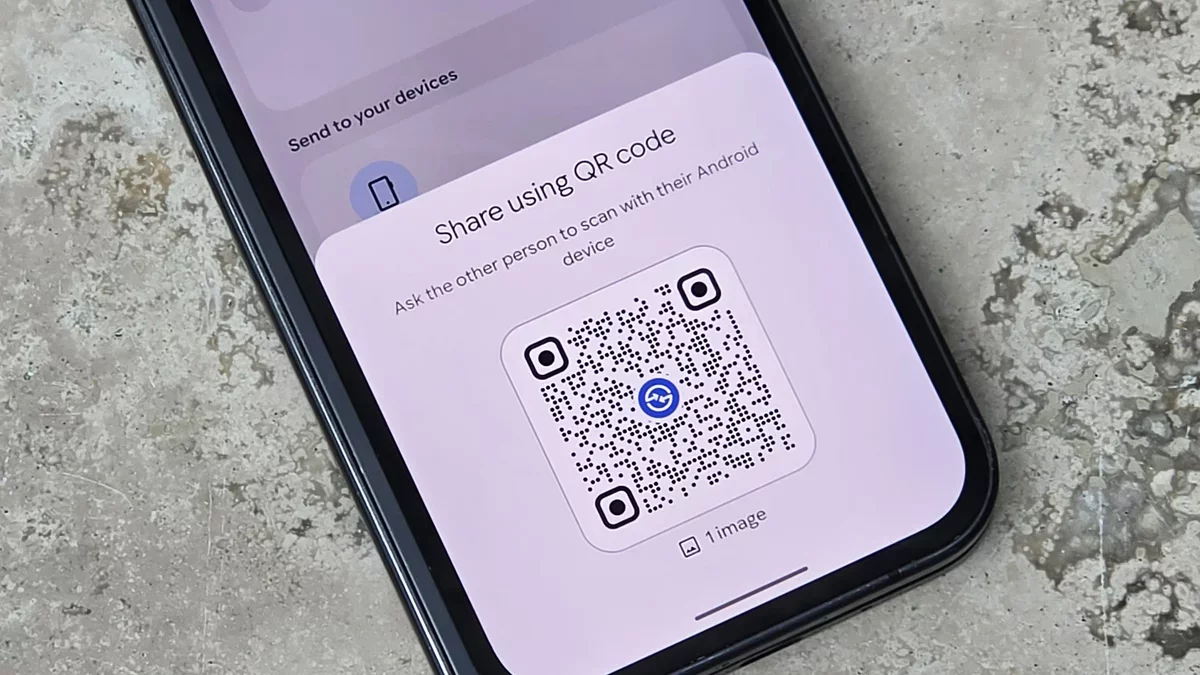
If AirDrop is not available, users can opt for the QR code sharing method. Upon receiving the update, a prompt will inform you that you can "Share with iPhone and other devices" via QR code. This option generates a thumbnail QR code for easy sharing.
To receive files, the iPhone must be in receiving mode. Navigate to iOS Settings, then tap General > AirDrop > Everyone for 10 Minutes. Once set, the Android device's QR code can be scanned using the iPhone Camera app, leading to a custom URL on the quickshare.google portal.
According to Google, files shared in this manner will remain accessible in the cloud for 24 hours, allowing transfers up to 10GB within that time frame. Users can send as many as 1,000 files in one session to a maximum of 20 iPhone, iPad, or macOS devices. Importantly, these files are protected by end-to-end encryption and do not count against Google Drive storage limits.
While AirDrop remains the preferred option where available, the QR code method is an excellent alternative for older devices lacking AirDrop support. Additionally, apps like WhatsApp can facilitate cross-platform sharing, although they may compress files during the process.
As technology continues to evolve, the integration of these sharing features not only enhances user experience but also paves the way for a more interconnected digital ecosystem, fostering seamless communication across diverse devices.