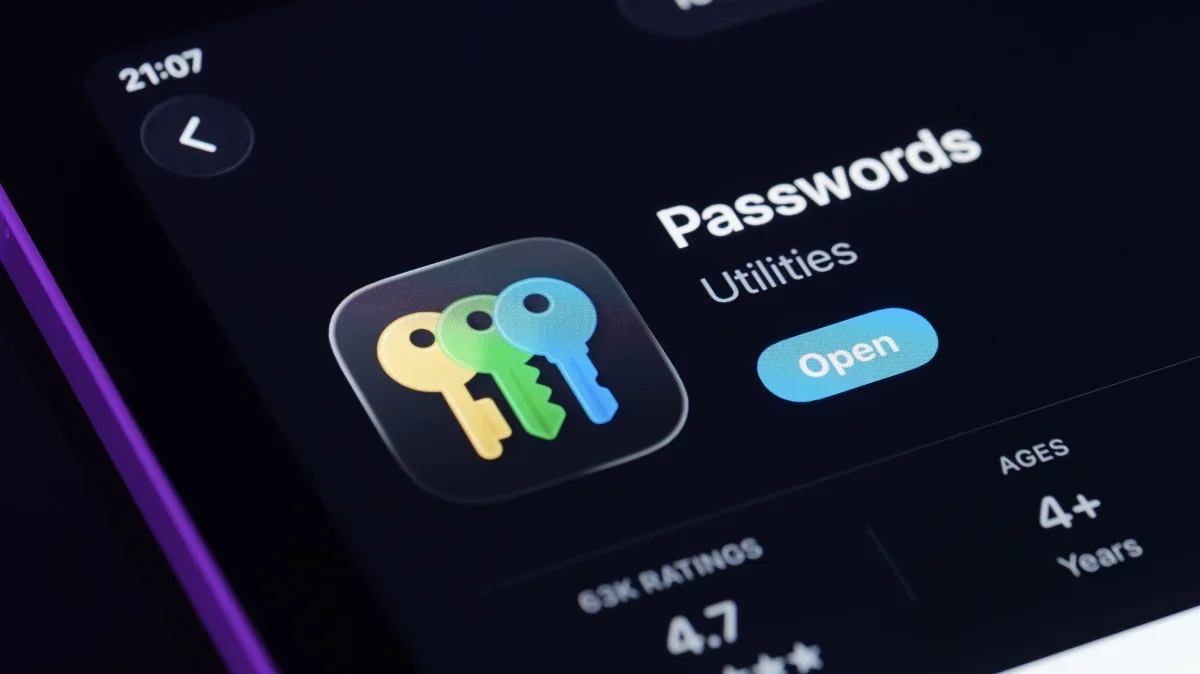
Advocating for the use of password managers is a stance I strongly support, yet I had been hesitant to adopt passkeys until recently. Despite their numerous advantages, including enhanced security and ease of use, I found myself reluctant to transition. Passkeys eliminate the need to memorize complex strings of characters, allowing users to log in via device authentication methods such as facial recognition or fingerprint scanning. This approach significantly bolsters security against phishing attacks, as passkeys cannot be misused on fraudulent sites.
The primary concern that held me back was the inability to transfer passkeys between applications. Unlike traditional passwords, which can be easily migrated from one manager to another, passkeys were previously locked within their respective systems. However, a significant breakthrough has occurred with the introduction of a new set of specifications by the FIDO Alliance, aimed at facilitating the transfer of passkeys across platforms. Apple has taken the lead in implementing this feature with the rollout of iOS 26, enabling users to export and import passkeys seamlessly.
For this feature to be truly effective, widespread adoption among major password management tools is essential. Recently, many of these applications have integrated this functionality, allowing users to switch between managers without losing access to their passkeys. I personally tested the process by transferring my passkeys from Apple Passwords to 1Password, and the experience was smooth enough to convince me to fully embrace passkeys. Now, if I decide to change my password manager in the future, I can do so without the fear of being locked into one system.
Exporting Passkeys from Apple Passwords
To initiate the export, set up the new password manager on the same Apple device as your Passwords app. Open Passwords, navigate to the home screen, and tap the three dots in the top-right corner. Choose Export Data to Another App, select the login items with passkeys, and tap Continue. After confirming your choices, a list of compatible password management apps will appear. I selected 1Password, and my passkeys were successfully transferred.
Importing Passkeys into Apple Passwords
To import passkeys from other password managers, access their export feature, which may be located in the settings. Some apps may require exporting all data instead of selected passkeys. Once you locate the export option, you will encounter a similar Export Passwords page. After selecting Passwords and confirming, your passkeys will be imported with ease.
This new capability not only enhances user flexibility but also signifies a pivotal shift towards a more secure digital landscape. As passkey adoption grows, we can anticipate a future where online security becomes more robust and user-friendly.