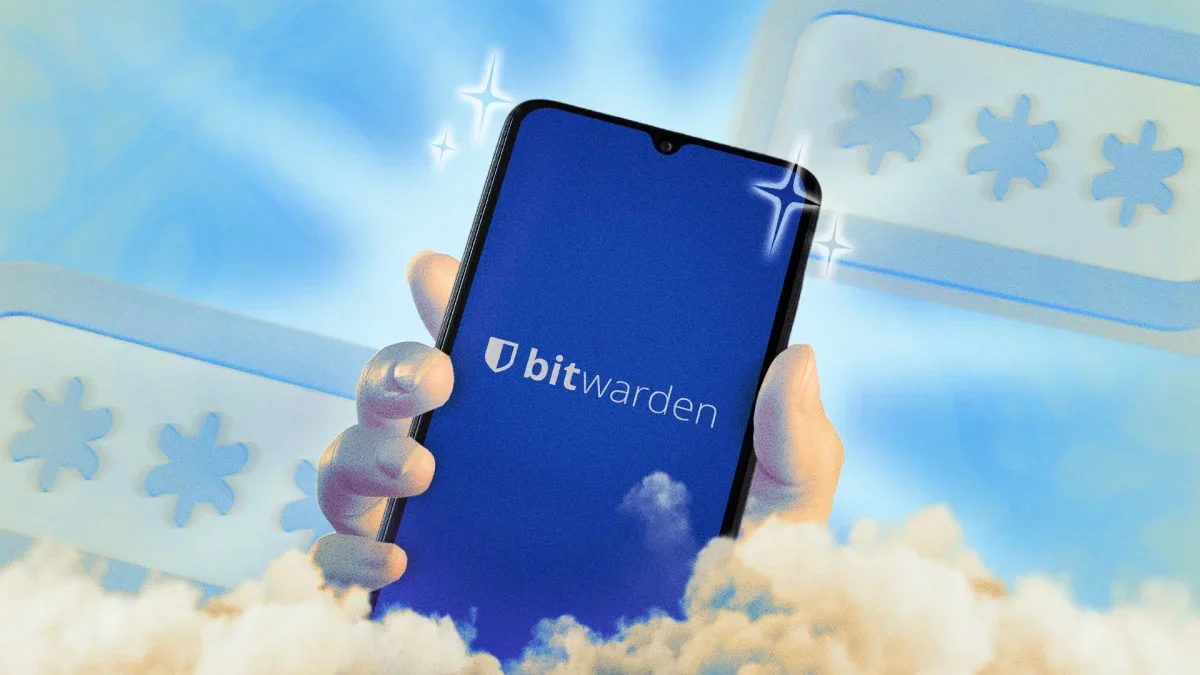
While built-in password managers from platforms like Google and Apple are effective, users who navigate multiple devices and operating systems may find a dedicated solution like Bitwarden invaluable. This open-source password manager provides robust encryption by default and offers a range of features for free across all platforms, including the ability to sync passkeys and two-factor authentication codes. However, to truly leverage Bitwarden's potential, users must implement additional security measures to safeguard their sensitive information.
Enhance Security with Two-Factor Authentication
Securing your Bitwarden account starts with a strong master password, but adding a second layer of security is crucial. Bitwarden supports various two-factor authentication methods. Navigate to Settings > Security > Two-step login to set this up. For optimal security, consider using a hardware key like YubiKey if you subscribe to Bitwarden Premium.
Prioritize Manual Autofill for Security
While autofill features offer convenience, they can pose security risks. To enhance your security, disable autofill and utilize the Bitwarden button in your browser extension instead. This approach allows you to manually select autofill options, ensuring that your vault remains secure.
Shorten Timeout Windows for Added Protection
To prevent unauthorized access, reduce the timeout window for your Bitwarden extension. Access this feature under Settings > Account Security and set a shorter timeout duration to lock your vault after inactivity.
Utilize Biometrics on Trusted Devices
For quick access on trusted devices, enable biometric authentication in Bitwarden. This feature allows you to unlock your vault using Face ID, Touch ID, or fingerprint recognition. You can activate this under Settings > Security.
Make Bitwarden Your Default Autofill Service
For seamless password management, set Bitwarden as your default autofill service on both iOS and Android. This ensures that you can easily save and fill passkeys across all your devices.
Streamline Two-Factor Authentication Codes
Instead of relying on a separate authenticator app, integrate your 2FA codes into Bitwarden. This allows you to manage both passwords and authentication codes in one secure location, simplifying your login process.
Share Passwords Securely
Bitwarden's Send feature enables you to share passwords and files securely. You can control access by setting expiration dates and passwords for the shared links, ensuring your data remains protected.
Emergency Access for Trusted Contacts
Designate trusted contacts for emergency access to your Bitwarden vault. This feature allows them to access your data in case of emergencies, providing peace of mind.
Utilize Keyboard Shortcuts for Efficiency
Maximize your efficiency with Bitwarden's keyboard shortcuts. For instance, pressing Control/Command + Shift + L opens Bitwarden and autofills your last used password, streamlining your login experience.
Master Password Re-Prompt for Sensitive Data
For heightened security, enable the master password re-prompt feature for accessing sensitive notes or bank passwords. This ensures that even if someone gains access to your account, they cannot view critical information without re-entering your master password.
By implementing these strategies, Bitwarden users can significantly enhance their password management experience, ensuring both convenience and security in an increasingly digital world.