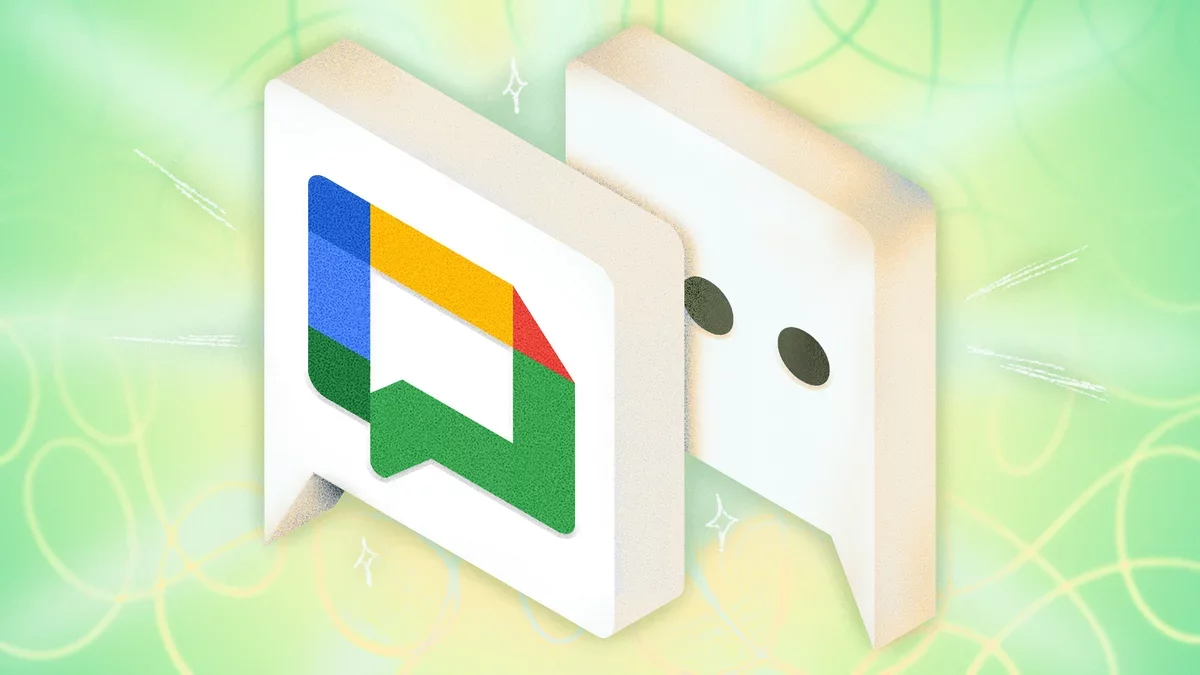
For users immersed in the Google ecosystem, particularly those utilizing Google Workspace, Google Chat has emerged as a preferred platform for messaging and collaboration. This application, which succeeded Hangouts within Gmail, has evolved from its initial business-focused launch to a widely accessible tool for all. Here are some innovative hacks to optimize your experience with Google Chat.
Add Chat to Gmail for Seamless Integration
If your Gmail is already open among numerous tabs, there's no need to clutter your browser with another one for Google Chat. You can integrate Chat directly into your Gmail interface. Simply click on the Settings gear icon at the top of Gmail, select See all settings, navigate to the Chat and Meet tab, and choose the Google Chat option. For mobile users, access Settings > Chat and toggle on Show the chat tab.
Utilize the Google Chat Desktop App
If you prefer a dedicated application over a browser, the Google Chat desktop app is available for Chrome users. While it operates as a standalone app, please note that Chrome must be running for it to function. To install, visit chat.google.com in Chrome and select the Install option from the menu.
Schedule Messages for Optimal Timing
With the ability to schedule messages, you can compose chats at your convenience and send them at a later time. This feature is particularly useful for coordinating with colleagues across different time zones or for reminders. Draft your message, click the down arrow next to Send, and choose a suggested time or set a custom one.
Establish Do Not Disturb Periods
To manage notifications effectively, set up a Do Not Disturb schedule that silences alerts during your off-hours. Navigate to Settings > Notifications in your Chat window, scroll to Do not disturb schedules, and customize your preferences to suit your routine.
Enable Email Notifications for Unread Messages
For times when Google Chat is closed or notifications are muted, you can enable email alerts for unread messages. Go to Settings > Notifications and toggle on Get email notifications for unread direct messages or @mentions to stay updated without logging in.
Open Multiple Chats in Pop-out Windows
To enhance multitasking, you can open conversations in separate pop-out windows. From your Chat home screen, click the three vertical dots next to a conversation and select Open in a pop-up.
Add Messages to Tasks for Better Organization
Google Chat integrates smoothly with Google Tasks, allowing you to convert messages into action items. Click the three-dot menu > Add to Tasks to keep track of important tasks directly from your chats.
Utilize Search Filters for Efficient Message Retrieval
Finding specific messages is easy with Google Chat's advanced search filters. You can narrow results by sender, date, or whether a message contains links or files, ensuring you can locate important information quickly.
Activate Auto-Delete for Sensitive Conversations
If you wish to maintain privacy, you can turn off chat history for certain conversations, ensuring messages are automatically deleted after 24 hours. Access this feature by clicking the down arrow next to the chat title and selecting Turn off history.
Summarize Conversations with Gemini
For Google Workspace users, the Gemini feature can summarize both read and unread conversations, making it easier to catch up without sifting through every message. Simply hover over a conversation and click Summarize to access this functionality.
These hacks not only streamline your communication but also enhance collaboration within teams, paving the way for a more integrated and efficient remote working experience in the future.