Few things are as frustrating as losing valuable hours of work due to an accidental keystroke or the wrong click in Microsoft Word. This unfortunate event can lead to the disappearance of your meticulously crafted document in an instant.
Moreover, unexpected incidents such as power outages can also result in losing your unsaved work. But before you consider starting from scratch, there are several techniques you can employ to recover your lost content.
Utilize the Undo Command (Ctrl+Z or Cmd+Z)
Often, the simplest solution is to use the undo function. By pressing Ctrl+Z on Windows or Cmd+Z on macOS, you can reverse your last action in Word. This might help you recover a deleted table or restore a block of text that you mistakenly cut.
While this won't protect you from a power failure or recover a closed file, it can be effective for many mistakes. Word maintains a history of your last 100 actions, allowing you to revert to earlier stages of your work.
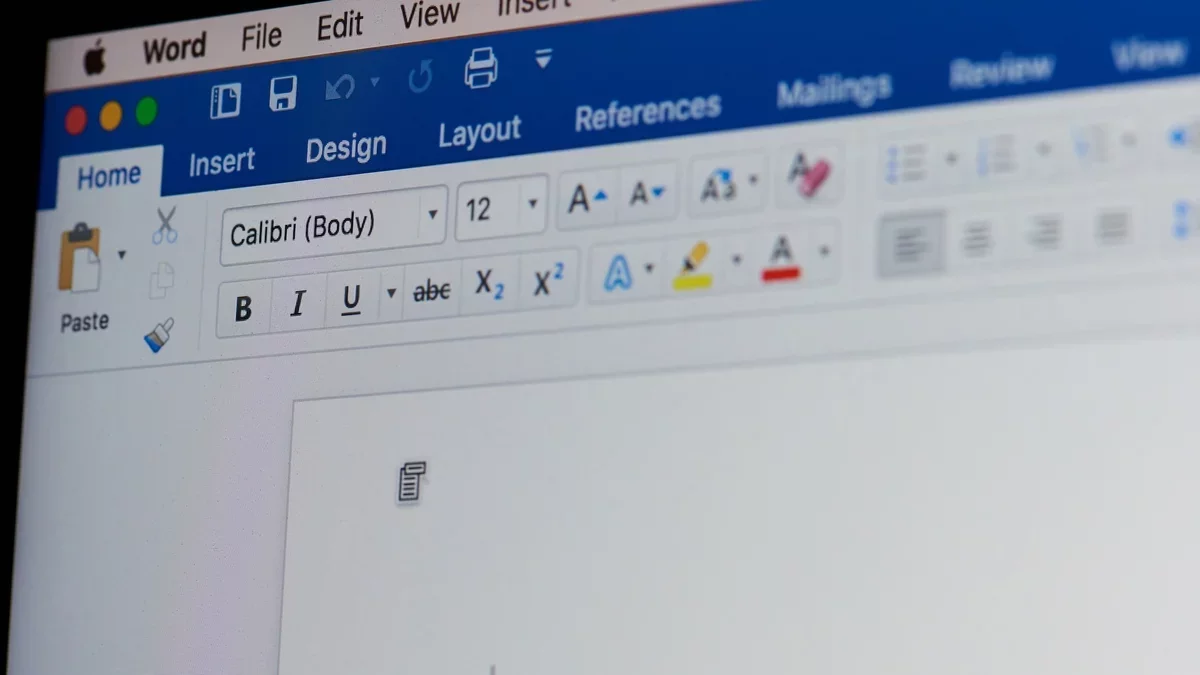
If you prefer a visual approach, there's an undo button located in the upper left corner of the Word interface. Clicking this will undo your last action, and you can access a list of previous actions by clicking the adjacent arrow. To the right, the redo button allows you to reverse the undo action.
Access Previous File Versions
Another useful feature in Word is the file version history, which automatically saves earlier versions of your document at regular intervals. This enables you to revert to a previous state of your work, even after closing and reopening the app.
For Windows users, navigate to File > Info > Version History to find older versions. On macOS, you can access this feature through File > Browse Version History. A sidebar will display all saved versions along with their timestamps.
Do note that this feature requires your document to be saved in the cloud via OneDrive. If you're working with a local file, you'll be prompted to save it to OneDrive to enable version history.
Locate Unsaved Documents on Your System
Microsoft Word periodically saves temporary files on your computer. If the application crashes unexpectedly, you might see an autorecovery dialog when you next open Word, offering to recover your lost file. Alternatively, you can check for partially saved files by navigating to File > Info > Manage Document > Recover Unsaved Documents on Windows.
For macOS users, the autorecovery process is your best option. Both platforms allow you to set the frequency of auto-recovery saves under File > Options > Save (Windows) or Word > Preferences > Save (macOS). The default setting is every 10 minutes, but this can be adjusted as needed.
If you still can't find your file, you might want to check the temporary cache folder manually. On Windows, look in "C:\Users\
Save Your Work to the Cloud
Microsoft encourages users to save their work in OneDrive, offering numerous advantages, including the version history and collaborative features. One notable benefit is the AutoSave function.
AutoSave automatically syncs your changes to the cloud each time you modify your document. When active, the AutoSave button in the top left corner will be highlighted, and the document name will indicate ongoing saves.
In the event of a crash, your work remains secure thanks to AutoSave, which is enabled by default for OneDrive files. You can customize this feature through File > Options > Save on Windows or Word > Preferences > Save on macOS.