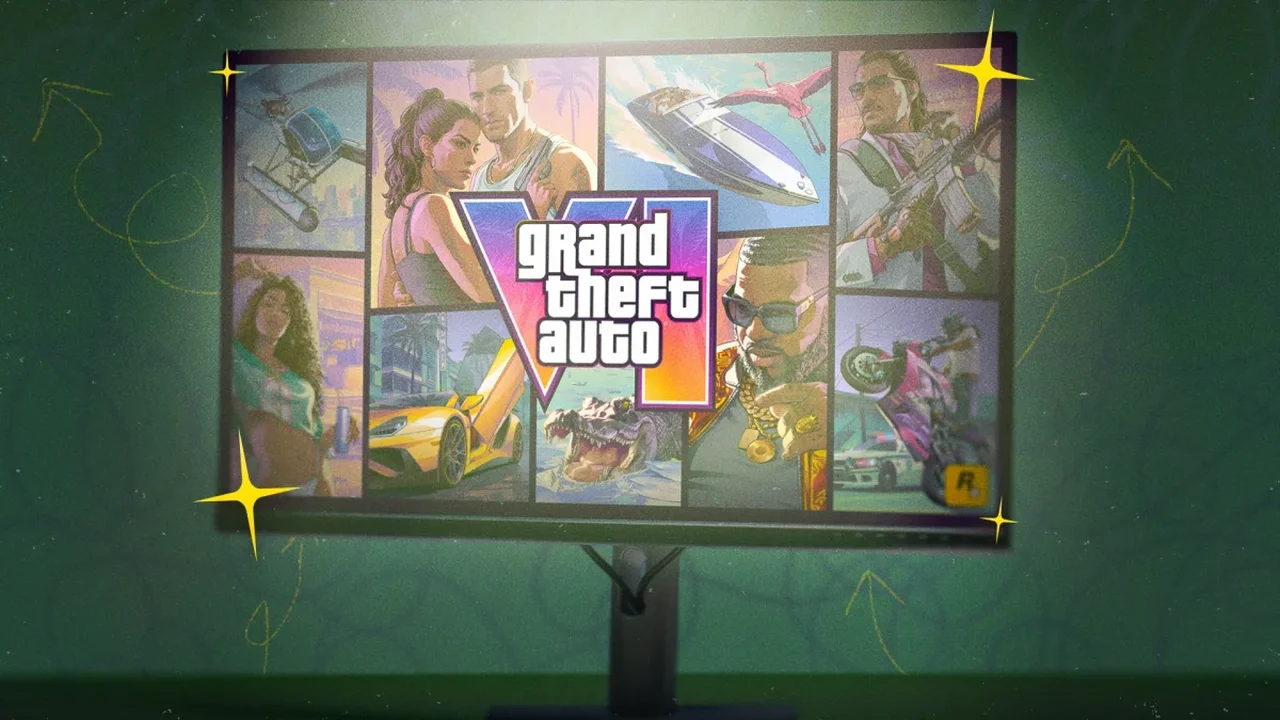
A few thoughtful adjustments can make Grand Theft Auto VI easier to navigate and more comfortable to play. These tips cover early missions, controls, audio and accessibility options.
Take your time in Chapter 1
Complete optional tasks and character requests as you encounter them; some may not be available later. Save before starting "Recalibration," which leads into "Tourist Trap," a point of no return for the chapter.
Make navigation and movement easier
Enable GPS voice guidance under Settings > Audio > GPS Voice to hear directions while driving. To adjust how Jason and Lucia move, visit Gameplay > Movement Speed and choose Jog or Run. The Classic control scheme also offers an alternative way to run.
Fine-tune the controller
Lower vibration under Controller > Vibration & Haptics Strength for less intense feedback. Adjusting the analog-stick deadzone can also help make steering feel more controlled; a setting around 7 is one suggested starting point.
Customize visual effects
Under Display, set Flashbang to Dark to reduce bright flashes. You can also lower Player Status Effects Intensity, enable Brightness Reduction or try Focus Trail Colorblind Mode to suit your preferences.
Reduce camera discomfort
A Persistent Center Dot may help some players feel more comfortable during play. If camera movement bothers you, try lowering Camera Bob and turning off Camera Shake and Weapon Sway. Adjust Aim & Look Sensitivity to find a comfortable response.
Adjust audio effects
Enable Tinnitus Reduction in the Audio settings to reduce lingering ringing effects after explosions.
These options show how flexible control and accessibility settings can help players tailor expansive game worlds to their needs.