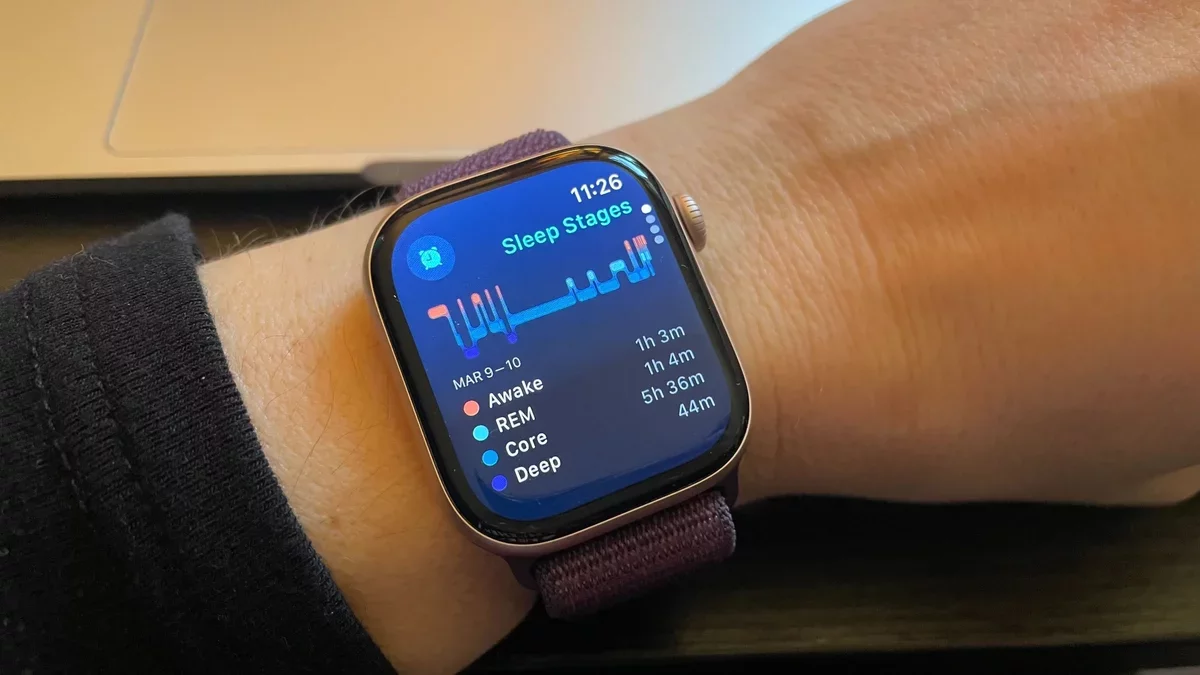
The Apple Watch, equipped with a sophisticated sleep tracking feature, offers users valuable insights into their nightly rest. Here's a comprehensive guide on how to access, set up, and interpret your sleep data effectively.
Compatibility with Sleep Tracking
Introduced with WatchOS 7 in 2020, sleep tracking is available on Apple Watch models from Series 3 onward, provided they are paired with an iPhone 6S or newer running iOS 14 or later. If your Apple Watch is relatively recent, it likely supports this feature.
Accessing the Sleep App
To fully utilize the sleep tracking capabilities, you'll need to explore several locations across both your Apple Watch and iPhone.
On Your Apple Watch
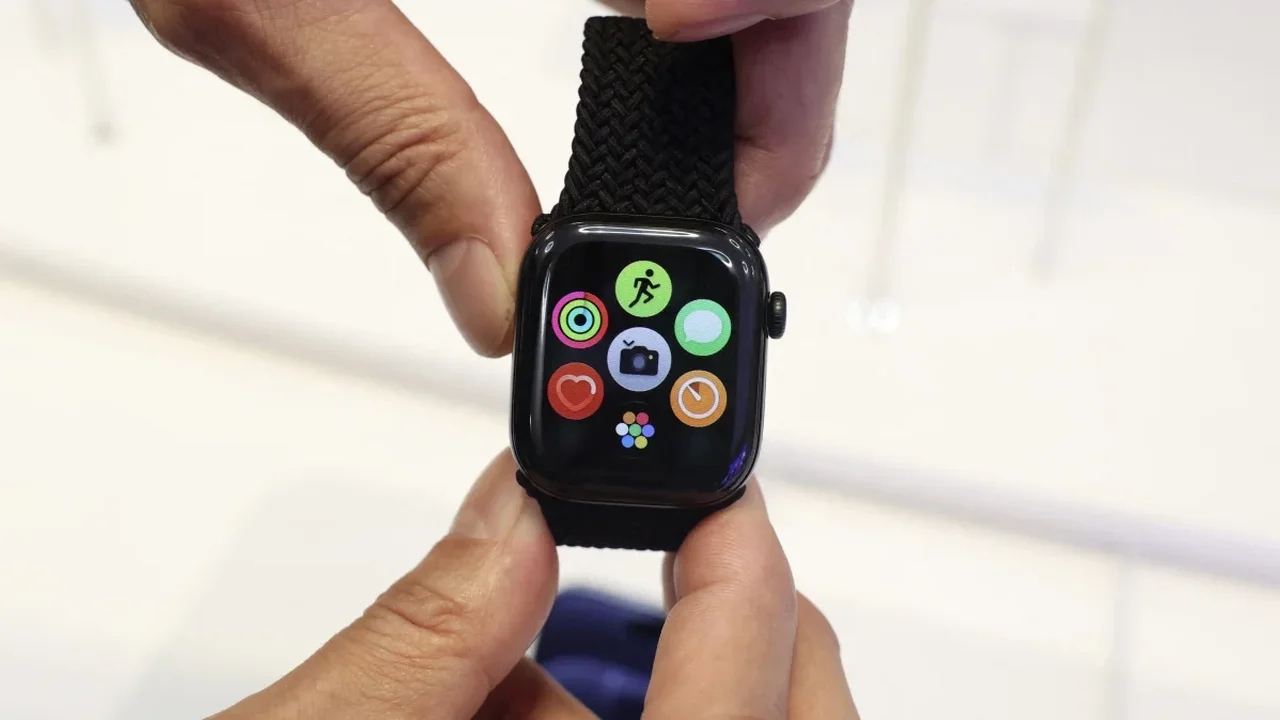
Look for the bed icon on your watch's interface. Once located, open the Sleep app to check or establish your sleep schedule. The Apple Watch will automatically track your sleep without needing to revisit the app.
In the Health App
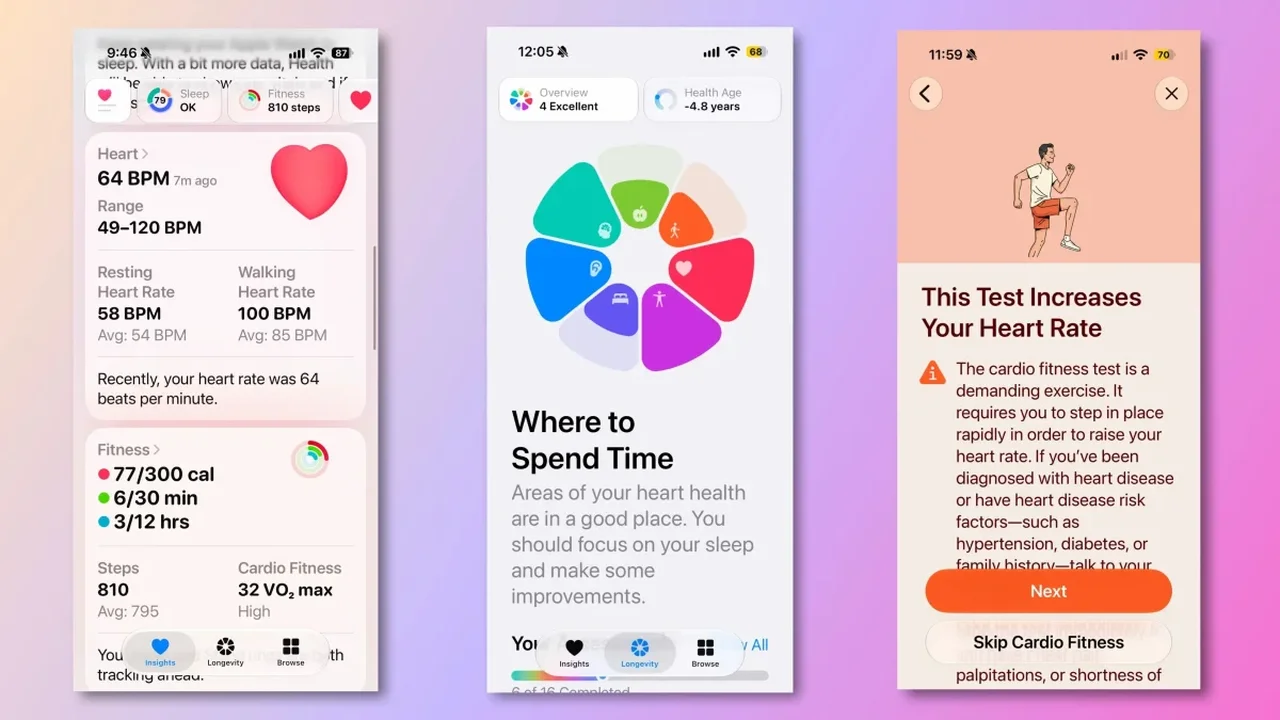
Your iPhone's Health app houses sleep functionalities. Open the app, select Browse, and then tap Sleep. Here, you can monitor recent sleep patterns and set future sleep schedules. Adjust your sleep schedule by tapping Full Schedule & Options, where you can outline your intended sleep times.
In the Watch App
To ensure sleep tracking is enabled, navigate to the Watch app via the Health app. Tap Manage Sleep to access the necessary settings. Enable Track Sleep with Apple Watch and activate Charging Reminders to receive notifications for charging your watch before bedtime.
In the Settings App
Further configure your Sleep Focus in the Settings app. This feature is optional but enhances tracking by providing tailored home screens and notification settings that activate at bedtime.
Setting Up for Sleep Tracking
To begin tracking your sleep, follow these steps:
Establish a sleep schedule in the Health app.
Access the Watch app to manage sleep settings.
Enable tracking features.
Wear your Apple Watch to bed, ensuring it's unlocked and wrist detection is activated.
Interpreting Your Sleep Data
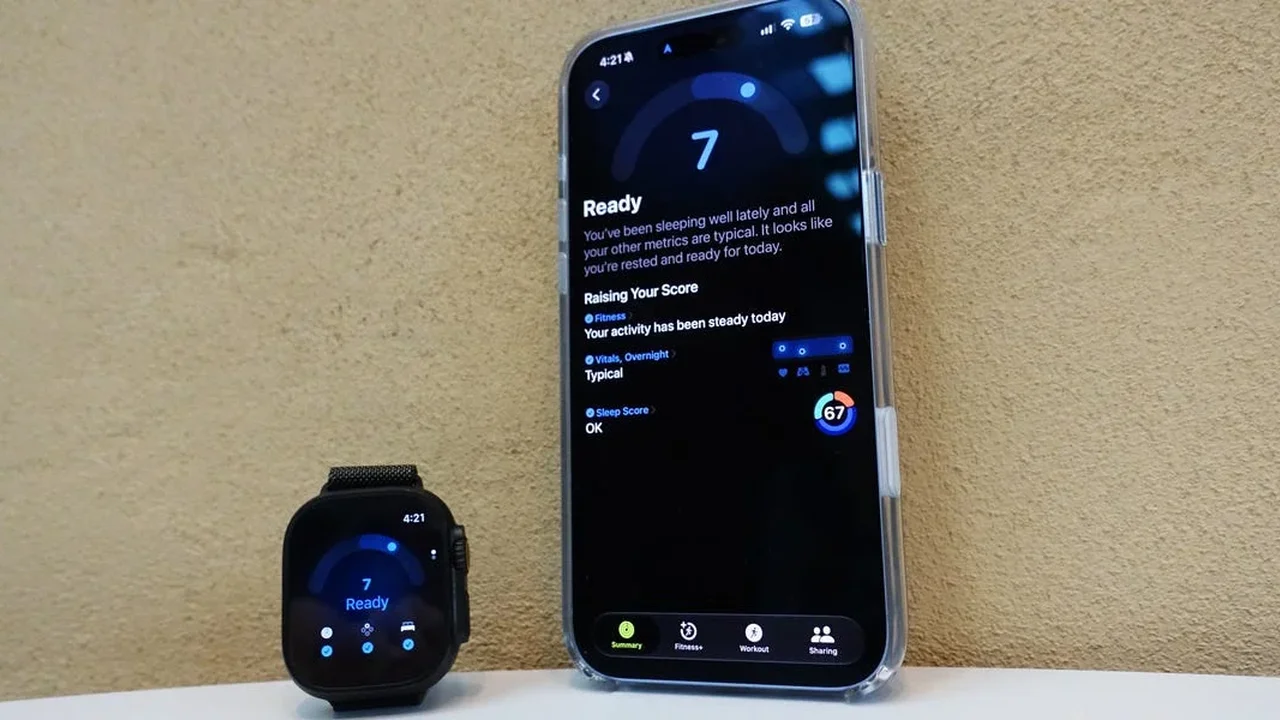
To view your sleep data, scroll down from your watch face or access the Sleep app directly. You'll find details about sleep stages, total sleep time, and recent trends. The app categorizes sleep stages into deep sleep, light sleep, REM, and awake times, providing a visual representation of your nightly rest.
Additionally, you can monitor your heart rate during sleep and review trends over days, months, and years to assess your sleep quality over time.