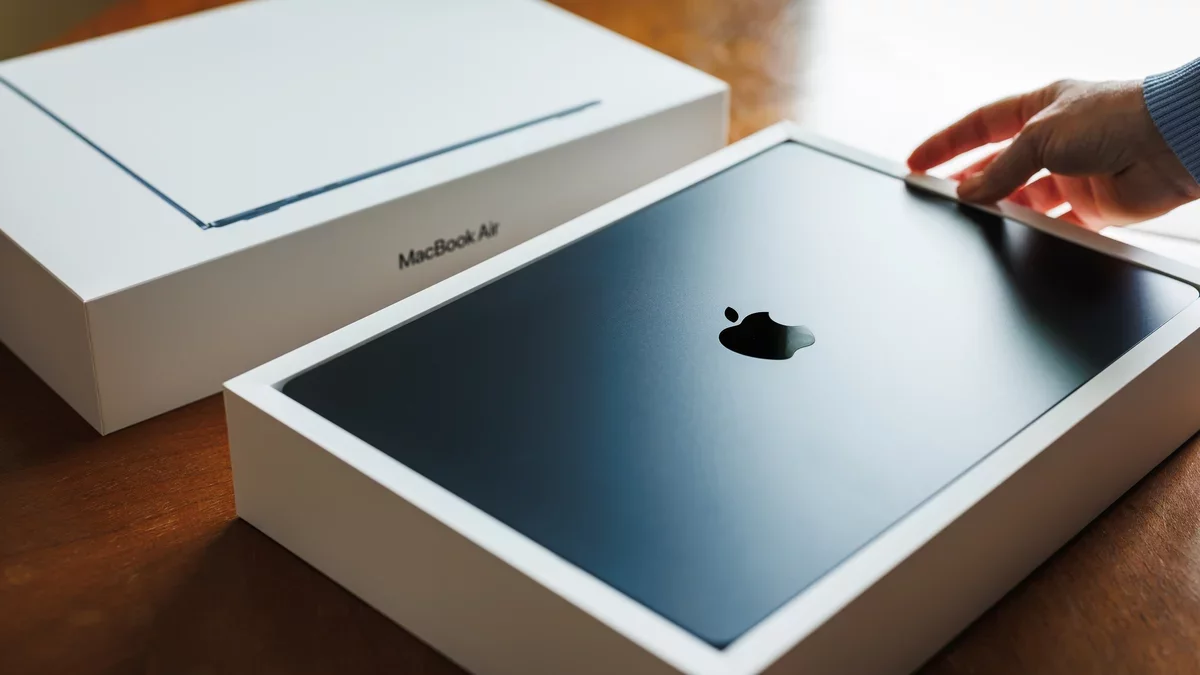
As Apple celebrates a record-breaking launch week, with a surge in first-time Mac users, many are eager to explore the macOS environment. If you're among those embracing this change, understanding the key differences from Windows can enhance your experience.
Menu Bar vs. Taskbar
The most noticeable change is the menu bar, which is a staple of macOS. Unlike Windows' taskbar, the menu bar is located at the top of the screen and integrates app shortcuts, notifications, and system status. Active application menus are also displayed here, making it easy to navigate across different software.
Absence of a Start Menu
macOS does not feature a Start menu. Instead, essential functions are found in the Apple menu located at the top-left corner. Here, you can access system settings, restart options, and app updates. Recent items are also listed for quick access to frequently used applications and files.
Launching Applications
Applications can be installed through the App Store or downloaded from the web. The Dock at the bottom serves a similar purpose as the Windows Taskbar, allowing for easy switching between apps. You can also use Spotlight, activated by Cmd+Space, to quickly find and launch programs.
Finder as Your File Manager
Finder replaces Windows' File Explorer, offering a user-friendly interface to manage files. It allows you to navigate through folders and quickly preview files using the Quick Look feature, enhancing your productivity.
Customizing Your Mac
Customization begins with the System Settings found in the Apple menu. Here, you can manage updates, notifications, and desktop backgrounds. Most applications also allow individual settings adjustments through their respective menus.
Keyboard Shortcuts
Adapting to new keyboard shortcuts is essential for efficiency. The Command key replaces the Control key for most functions, such as copying and pasting. Familiarizing yourself with these changes will streamline your workflow.
Seamless Integration with Apple Ecosystem
If you own other Apple devices like an iPhone or iPad, macOS offers seamless integration. Features such as a universal clipboard and screen mirroring enhance the ecosystem experience, allowing for smooth transitions between devices.
While transitioning to macOS may require some adjustments, the unique features and integration capabilities can significantly enhance your computing experience. As more users make the switch, the future of personal computing looks increasingly interconnected and user-friendly.